How to Slab Your Own Cards: Labels, Holders, and a Scannable Grade Report
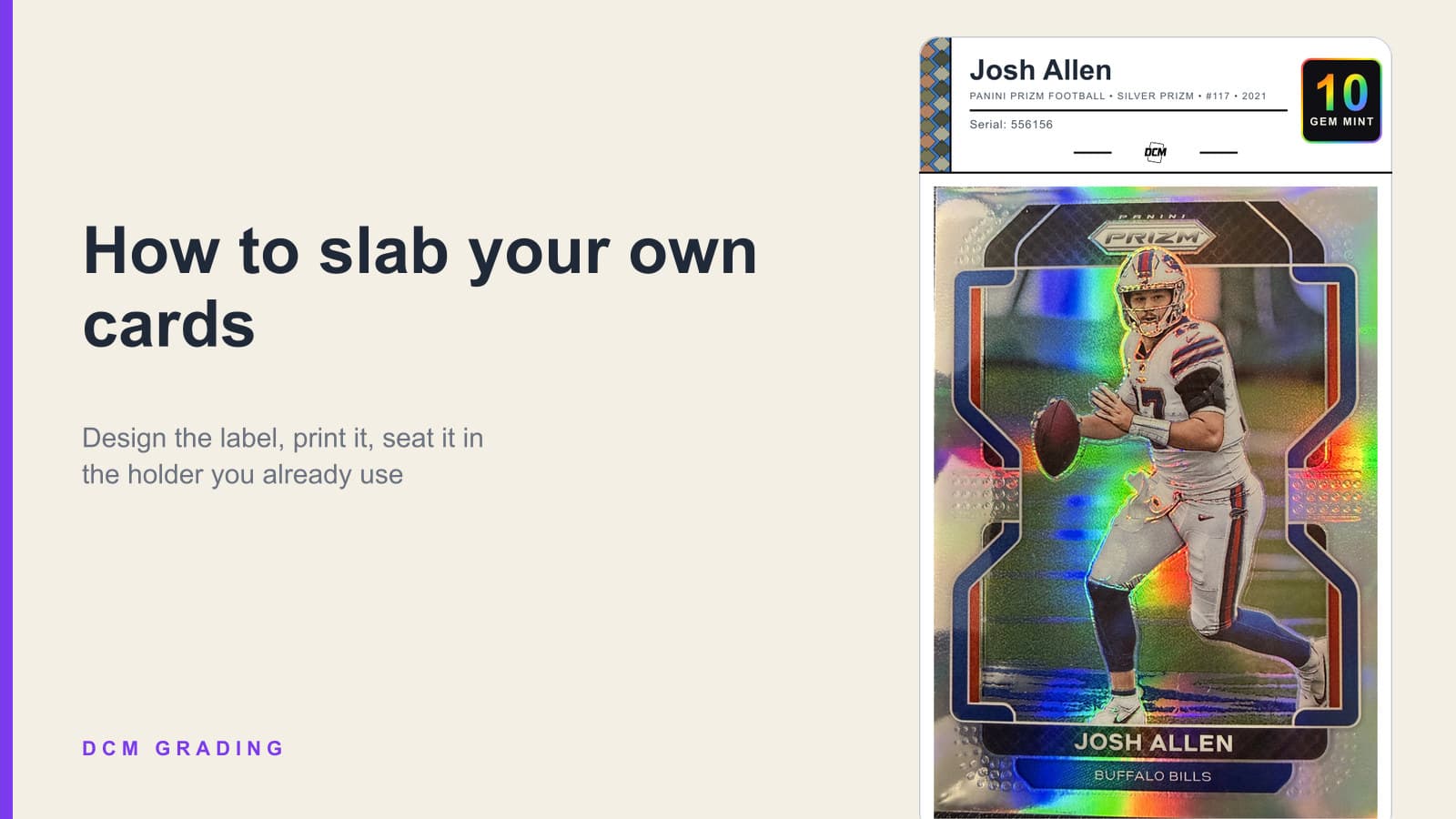
A Josh Allen Prizm card in a slab with a DCM Heritage label showing a Gem Mint 10 foil chip
Design a label, print it on a standard sheet, and seat the card in the holder you already use. A buyer scans the QR and sees the full report.
Quick answer
To slab your own card, grade it with DCM, check the "See it in a holder" previews on the card page, design a label in the card's own colours, and print it. Slab inserts print on Letter cardstock with cut guides; One-Touch and top loader labels print on Avery 6871 and 8167. The QR on the back of the label opens the full grade report.
Slabbing your own cards used to mean a plain holder and a handwritten sticker. Not anymore. With a grade on file, a label you designed, and a QR that opens the full report, a card you slabbed at your desk presents the way a graded card should.
Here is the whole process, start to finish.
Step 1: grade the card
Photograph the front and the back in the DCM app or on the web. About a minute later you have four subgrades, a final grade, a written reason for any deduction, an image confidence score, and a serial number with a public card page.
The serial and the page are what make the slab scannable. Everything on the label points back to them.
Step 2: see it in a holder
Scroll down the card page to See it in a holder. Your card is already shown in all three holders with your label on it: a graded slab, a top loader and a magnetic One-Touch. Flip each one between front and back, enlarge it, or download that holder's label right there.
 The same Josh Allen card previewed in a graded slab with a 2.8 by 0.8 inch insert, a top loader with an Avery 8167 label, and a magnetic One-Touch with an Avery 6871 fold-over label, each with a DCM Gem Mint 10 label
It is the quickest way to decide which holder a card deserves before you buy or print anything.
Step 3: design the label
Heritage is the default label for new accounts and the one most collectors choose for a slab: a patterned colour band, dark type, and a grade chip with a foil ring on a Gem Mint 10. Change it from the Label design menu on the card page, or open Label Studio to make it your own.
 DCM Heritage label front and back for a Josh Allen Prizm card: the front shows the name, set, serial and a foil Gem Mint 10 chip; the back shows a QR code, the grade and the four subgrades
The band can use the card's own colours, pulled from the artwork, so every label matches the card inside it. Or pick a fixed palette so a whole binder matches. Eleven band patterns, three logo treatments, and Modern and Traditional styles are there if Heritage is not your taste.
The back carries the QR, the grade, the condition and the four subgrades. That is the part a buyer scans.
Step 4: pick the holder and the size
One design prints to every holder. Pick the one you already own.
 Four holder sizes drawn to scale: standard slab 2.8 by 0.8 inches, Zion Mag Pro 2.51 by 0.76, One-Touch 2.375 by 0.625 folded, and toploader 1.75 by 0.5
- Graded slab. The 2.8 by 0.8 inch insert most graded-card holders use. Prints front and back on Letter cardstock or label stock with cut guides, 10 labels per sheet, or 20 with the "Labels per sheet" option.
- Zion Mag Pro. A slightly smaller slot at 2.51 by 0.76. The whole layout scales to fit, nothing is cropped.
- Magnetic One-Touch. A fold-over label on Avery 6871, 18 per sheet. The front shows the grade, the back carries the QR once it folds over the top edge.
- Top loader. Front and back labels on Avery 8167, 40 cards per sheet, or a single fold-over at 80 per sheet.
On the One-Touch and top loader, Heritage keeps its pattern and band colours. If you set custom chip colours for each grade, those stay on the slab insert, where there is room for them.
What to buy
Everything below is linked from the card page and the DCM shop:
- Traditional graded slabs. Snap-fit cases, 100 per pack, with the standard 2.8 by 0.8 inch slot.
- Magnetic graded slabs. Magnetic-closure display cases for your best cards.
- Zion Cases MagPro 35PT. Dual-magnet holders, 5 per pack. Label Studio has a Zion size preset.
- Avery 6871 and Avery 8167. The label stock the One-Touch and top loader sheets are laid out for.
- A paper trimmer. Straight, repeatable cuts are the difference between an insert that sits flush and one that looks hand-trimmed.
Step 5: print and fit
Print at 100 percent, never "fit to page." The cut guides and the Avery die-cuts are exact, and any scaling pulls the artwork off them.
The Heritage design uses an ivory field on screen and a paper-white field in the print file, with dark solid inks, because an ivory tint dithers into speckle on consumer inkjets. What you print looks clean on any inkjet or laser.
For a slab, cut along the guides and slide the insert into the label slot before you close the case. For a One-Touch or top loader, peel the Avery label and press it on. A flat plastic card or a credit card edge helps press a One-Touch label flat.
Step 6: scan it
Point a phone camera at the QR on the back. It opens the card's public page: the photos, the four subgrades, the deductions, and the confidence score. Anyone holding the slab can verify what is on the label. Keep the card set to public so a buyer can see the report.
 Split image: the same card raw in a penny sleeve on the left and slabbed with a DCM Heritage label on the right
That is the difference a slab makes. A graded, slabbed card with a scannable report presents very differently to a buyer than a raw card in a sleeve, whether that buyer is standing at your table at a show or looking at your eBay listing. List it with eBay InstaList and the listing photos carry the same label.
A note for shops and breakers
DCM Enterprise lets a shop grade and slab under its own brand: the store logo on the label, a house design with the band on any edge, a white or black grade chip, a border, and a storefront page every QR points to. If you run a shop or a breaking channel, the enterprise page has the details.
Batch it
If you are slabbing a stack, select the cards in your collection and print their labels together, every card with its own band colours and QR. Slab inserts print on Letter sheets with cut guides; One-Touch and top loader labels print on their Avery sheets. Grade the stack, pick the holder, print the sheet.
Frequently asked questions
- What holders do DCM labels fit?
- Standard graded-card slabs with a 2.8 by 0.8 inch slot, the Zion Mag Pro's smaller 2.51 by 0.76 slot, magnetic One-Touch holders and top loaders.
- What paper do I print labels on?
- Slab inserts print on Letter cardstock or label stock with cut guides, 10 or 20 per sheet. One-Touch labels use Avery 6871 and top loader labels use Avery 8167. Always print at 100 percent.
- Where do I buy holders and label stock?
- The card page and the DCM shop link to traditional and magnetic slabs, Zion MagPro cases, the Avery sheets and a paper trimmer.
- What does a buyer see when they scan the label?
- The card's public DCM page with the final grade, the four subgrades, the written condition report and the serial number.
- Can I print labels for a whole batch at once?
- Yes. Select multiple graded cards in your collection and print their labels together on one or more sheets.