
Digital display
Graded card slab image
Bring your card photo and grading label together in one image for your collection, social posts or marketplace listings.
Best for
Sharing your graded card online.
Reports & labels
A Heritage label for your display. A report with the details behind the grade. Choose the format that fits how you collect, share and sell.
Already graded a card? Open it from your collection.
A format for every use
Digital display
Bring your card photo and grading label together in one image for your collection, social posts or marketplace listings.
Sharing your graded card online.
Magnetic one-touch
A fold-over label for a magnetic one-touch holder. The Heritage design carries the grade on the front, with subgrades and a QR code on the back.
Displaying a card in a magnetic holder. Avery 6871 is the recommended label template.
Physical display
A compact label that keeps the card’s grade and identifying details visible with its top loader.
Organizing, displaying and sharing cards in top loaders.
One-page PDF
A fuller record of the card, its grade and condition analysis, with images and grading details in a printable document.
Keeping a record of the assessment or including the report with a card.
Compact report
The essential grade, serial number and QR code in a smaller format that can be displayed beside a card or shared as an image.
A folding display stand, a top loader insert or an online listing image.
Digital slab images and printed labels are display formats; they do not physically encapsulate your card.
Label Studio
Graded slab image, magnetic one-touch or top loader.
Heritage and modern styles, with available colors and emblems.
Review the name, set, year and card number shown on the label.
Review the finished layout, then save your print or digital file.
The details behind the label
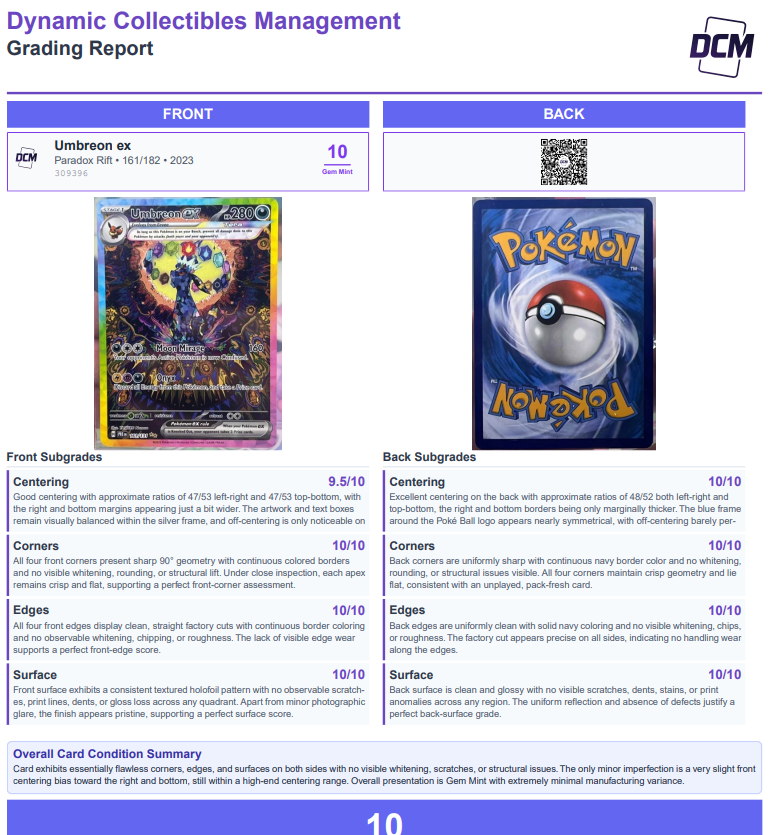
Open the example to inspect the complete layout.
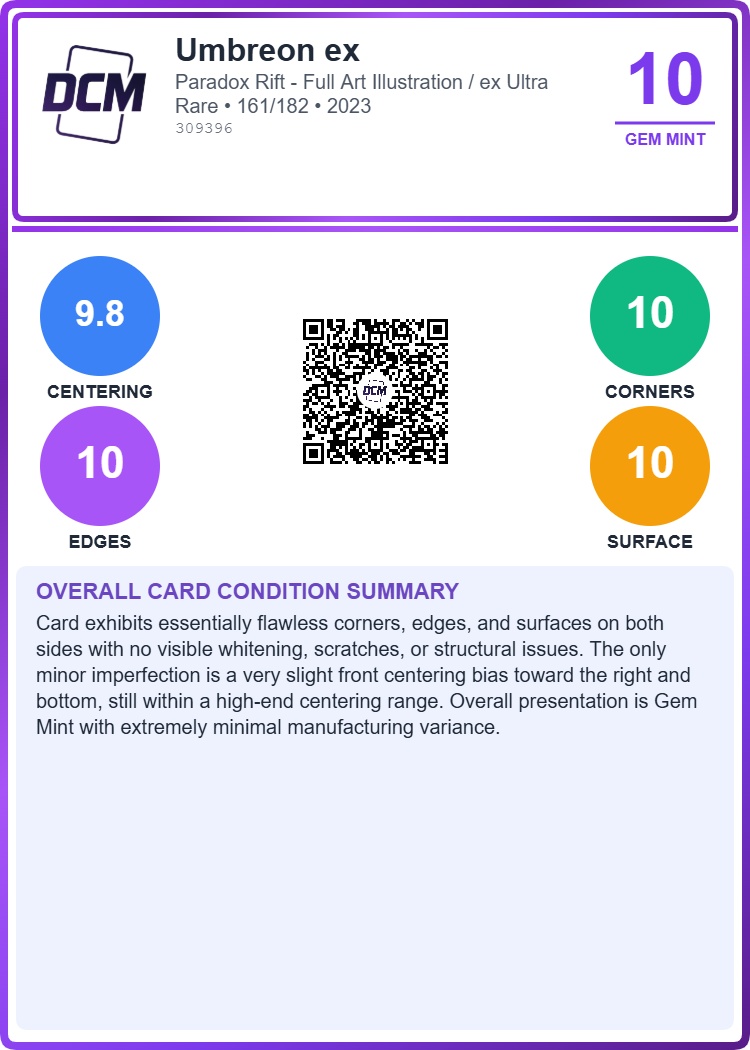
A compact format for displays and digital sharing.
From your collection
Sign in and choose a card from your collection to open its details.
Choose the report or label format, or open Label Studio to customize the presentation.
Follow the template’s print guidance and check the size against your holder before applying the label.
Select multiple cards in your collection to print a sheet in one pass.
Visit the DCM shop for recommended holders, top loaders and label supplies. Match your chosen label format to the holder you plan to use.
Report and label downloads are available to the account that originally graded the card. Public report viewing follows the card’s visibility settings.
The card’s serial number identifies its DCM grading record. Use the report link or supported QR code to review the associated assessment.