How to identify a card and track its value in DCM for free
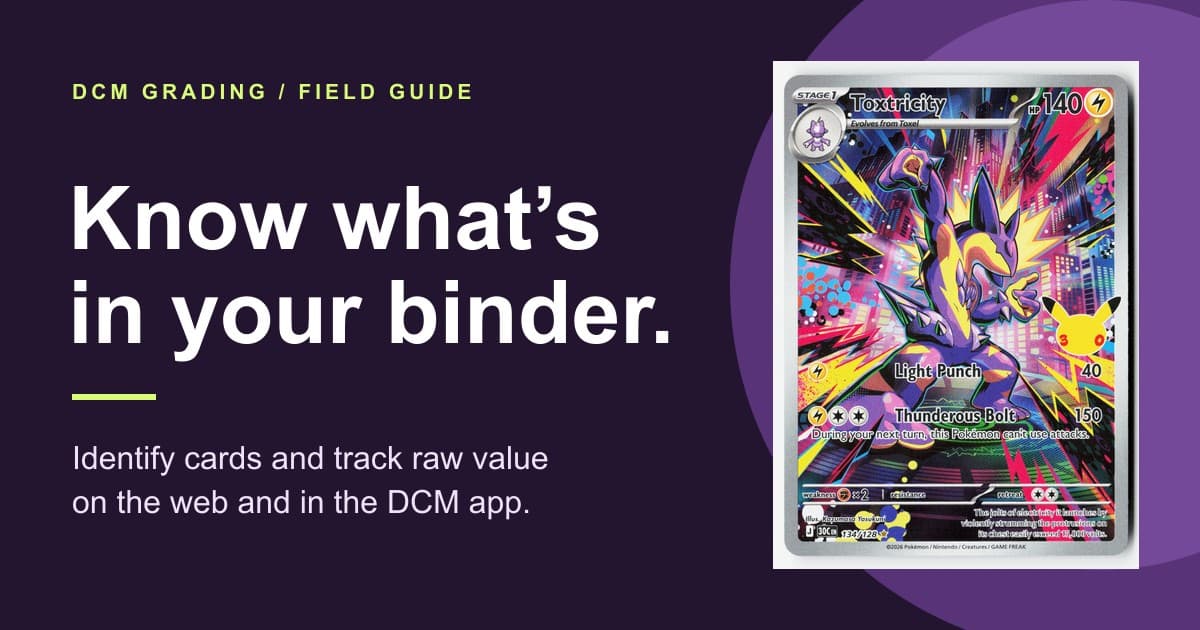
A Toxtricity card beside the words Know what’s in your binder.
A collector’s guide to free identification, ungraded cards and Portfolio on web and mobile.
Quick answer
Choose Add to collection (free), add front and back photos, and confirm the printing. Open the saved card for its raw market estimate or Portfolio → Holdings to see its contribution to your total. Grading is optional and uses one credit.
You can now put a card in your DCM collection before you decide whether to grade it. Photograph the front and back, check the printing DCM identifies, and save it. When pricing is available, you’ll see an estimate on the card itself and in your Portfolio. Here’s how to do it on the website and in the mobile app.
On the web: add your first card
Sign in and open Add a Card. If you came through the regular upload page, it starts on Grade (1 credit). Switch to Add to collection (free) and choose your Card Type.
 The web upload page with Add to collection (free) selected beside Grade (1 credit).
On desktop, click Select Front Image, then Select Back Image. Use two photos of the same card. Keep all four edges in frame and make sure you can read the small print on the back; the set and card number help distinguish look-alike printings.
 Select Front Image and Select Back Image on desktop, with the separate link for adding a stack.
Click Review & Submit. Check the category, continue to the photos, then click Add to Collection. That starts identification without spending a credit. You’ll confirm the match in a moment.
 The web photo-review button reads Add to Collection, with No credit used beneath it.
Have a stack? In free mode, Adding a stack? Add up to 100 cards at once → opens batch upload. Review the front/back pairs before submitting. Afterward, open cards marked Confirm details in your collection to check each match.
In the mobile app: use the camera or your photo library
Open the Grade tab and tap Add to collection (free). The heading changes to Add a Card. You can also start from the + button in Collection.
 The mobile app’s Grade tab with Add to collection (free) selected.
Choose the card type. Tap Camera to photograph both sides now, or Gallery to choose front and back photos you already have.
 The mobile app’s Camera and Gallery buttons under Upload Photos.
Check the category, tap Continue to Photos if prompted, and review the pair. Tap Add to collection to let DCM read the card.
 The Add to collection button on the app’s photo-review screen.
Confirm the exact printing
Compare the suggested name, set, number and year with the card in your hand. Correct any field that’s off. On a sports card, check the player and parallel: a base Prizm and a Silver Prizm can share a player and card number but sell for different prices.
When DCM offers Which version is it?, pick the version you own. Our best match is a suggestion. If none fits, choose None of these / not sure rather than attaching another version’s price. Then select Add to Collection and View Details. If you reopen a saved card to make a correction, the button reads Save and View Details.
 Web version picker showing Silver Prizm, base, and the Add to Collection and View Details button.
 The same sports-card version choices and final save button in the mobile app.
Find your card and read its raw value
Open My Collection on the web or Collection in the app. Choose Ungraded to find the cards you added without grading. All brings your graded and ungraded cards back together.
 The All, Graded and Ungraded filters on the website.
 The mobile Collection filters with Ungraded selected.
Open the card and look for Raw market value. “Raw” means the estimate is for an ungraded copy of that printing. For another point of comparison, select View eBay sold listings when available. Look for the same set, number, parallel and a copy in similar condition.
 Web Raw market value panel with an example estimate and View eBay sold listings.
 Mobile Raw market value panel with the pricing source and sold-listings link.
Unavailable means DCM doesn’t have a usable price match; it doesn’t mean the card is worth zero. If the printing looks wrong, choose Edit under Card details, or Fix card details when offered. Check the set, number and year, then save again.
See what the card adds to your Portfolio
On the web, choose Portfolio & values → from My Collection, or open Portfolio. In the app, tap the Portfolio tab. Choose Holdings for the cards you still own.
The screenshots use example values: $82.50 in total holdings, including one ungraded card at $12.50. The $12.50 is already in the total. Select the ungraded-card count to open those cards in Collection. Cards With Value Data tells you how many holdings have a price. Ungraded cards do not affect your average grade or the chart comparing current value with value at grading.
 Desktop Portfolio on Holdings: $82.50 across three priced cards, including one ungraded card at $12.50.
 The mobile Portfolio Holdings view with the same example total and ungraded-card link.
Grade a keeper when you’re ready
You can leave a card ungraded for as long as you like. If you want a condition report and DCM grade, open the saved card and choose Grade this card — 1 credit. DCM uses the photos you already added. The confirmation shows your balance and lets you Cancel or Use 1 credit and grade. If you have no credits, you’ll see Get credits to grade it instead.
 The web grading confirmation shows the credit cost, remaining balance, Cancel and Use 1 credit and grade.
 The credit confirmation and both choices in the mobile app.